Wall art mockups help buyers understand scale, framing, and whether a print will actually fit their space. A strong mockup closes the mental gap between "I like this" and "I want this on my wall."
This is a practical walkthrough for using WallMockup — a wall art mockup generator built for print sellers and artists. Upload your artwork, choose a wall scene, set real dimensions, adjust the frame and shadow, and export images ready for Etsy, Shopify, portfolios, or social media.
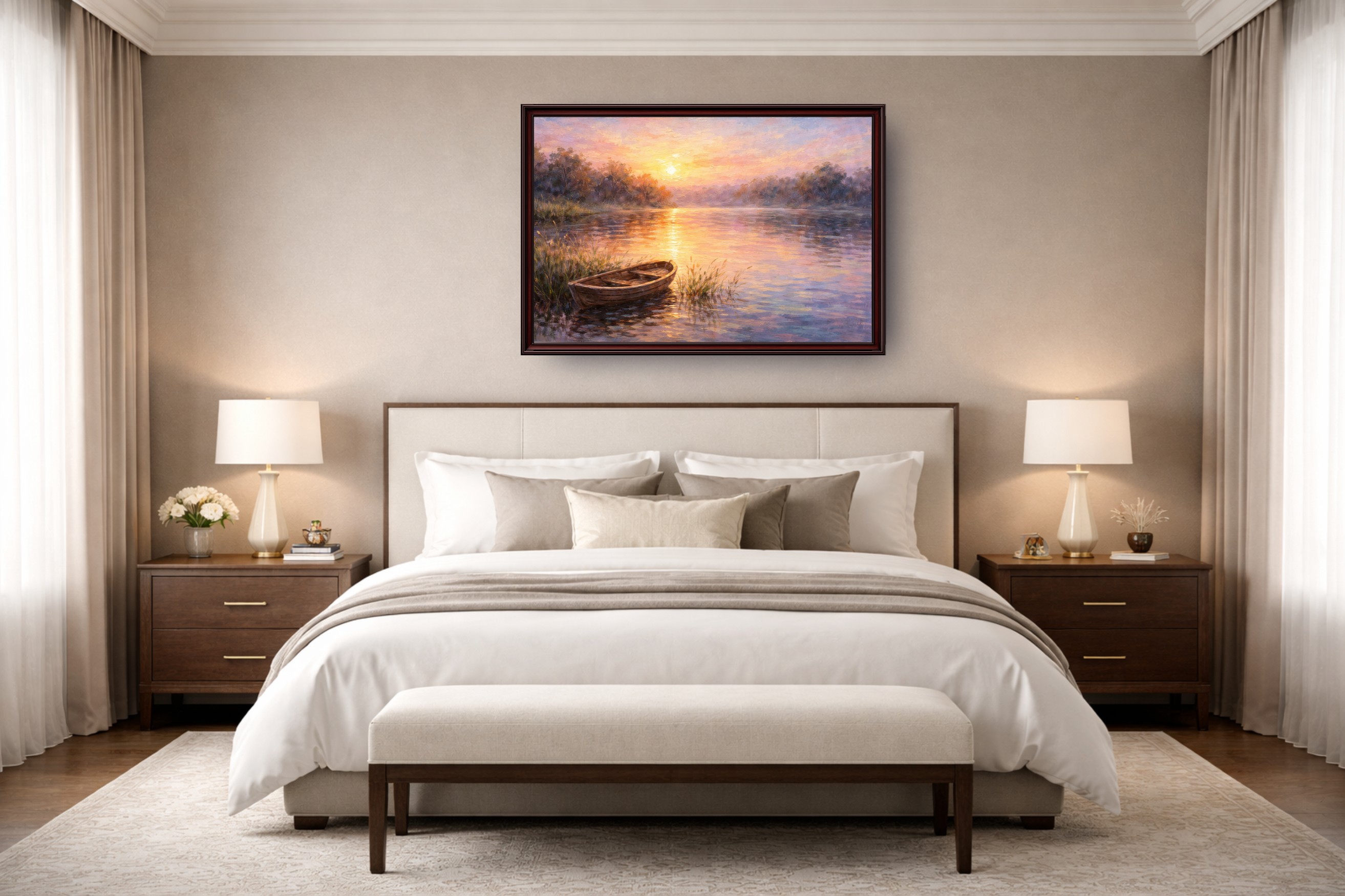
Before you start
Get your artwork file ready. JPG, PNG, and WEBP all work. Crop the art to the same aspect ratio as the product you're selling — if you list an 8x10, crop to 4:5. Mismatched ratios between your file and your listed size show up in the final mockup and they look off.
One thing worth deciding before you open the editor: are you selling digital downloads or physical prints? If digital, the mockup should show what the buyer will do with the file once printed — a framed version is fine, but it shouldn't imply a frame is included. If you sell physical framed prints, use a frame that matches what actually ships.
Step 1: Upload your artwork
Open the WallMockup editor. There's no project setup, no template library to dig through — the editor opens directly to a wall scene and you start immediately.
Upload your artwork file. WallMockup places it on the wall so you can begin adjusting right away.
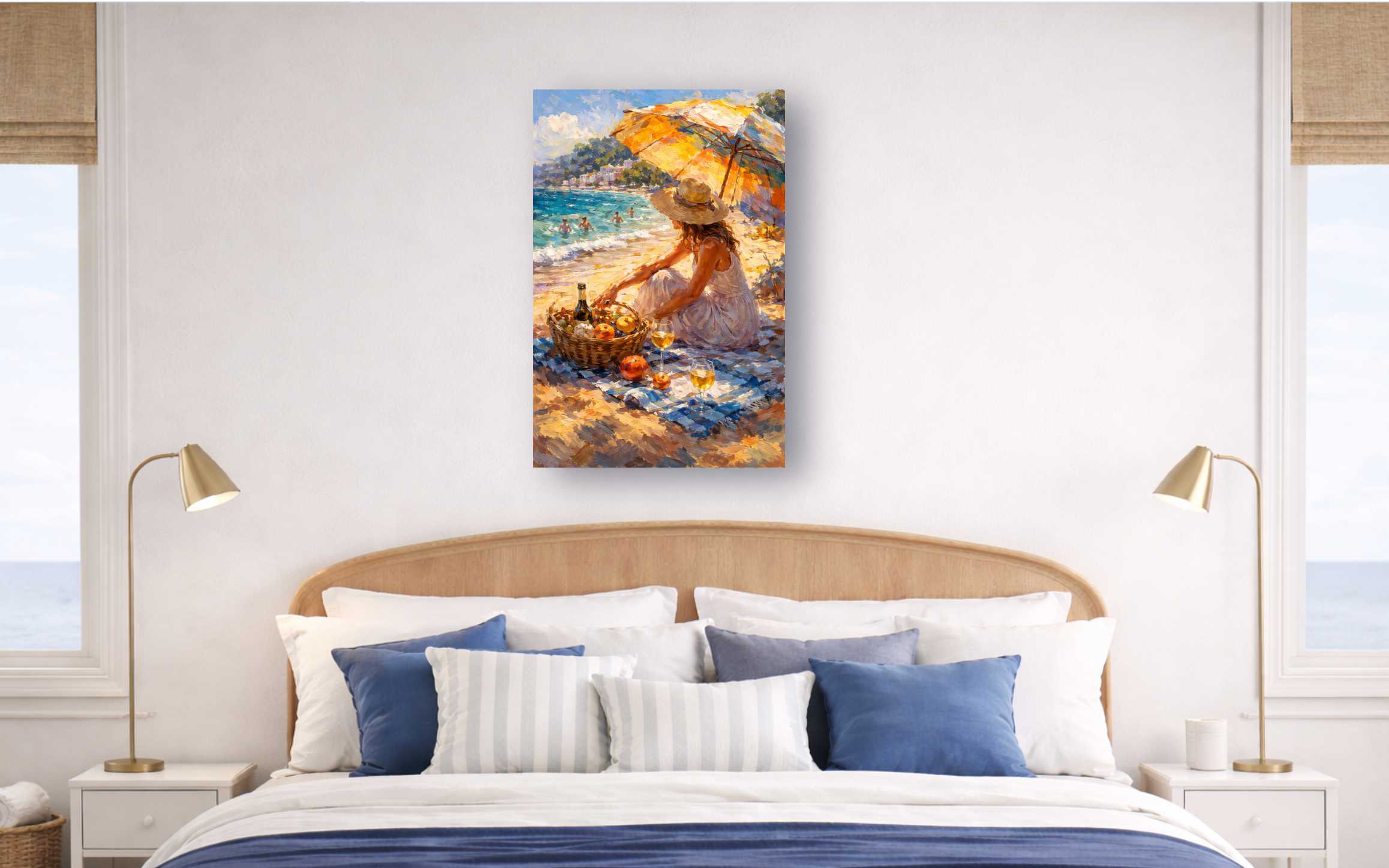
Step 2: Choose a room scene
Pick a room that fits the art and the likely buyer. A bright living room works well for modern printable art. A bedroom scene suits botanical prints and calm illustrations. A museum-style neutral wall gives fine art and limited editions more credibility. A home office reads well for maps, photography, and typography prints.
If you sell on Etsy, commit to one or two primary room styles and reuse them across your shop. Consistency in the background makes your listing grid look more intentional than mixing ten different scenes. The wall art mockups guide has more room scene ideas.
Step 3: Set the actual print size
This is where most mockups go wrong. Set the dimensions to match what you actually sell — not a size that makes the artwork look impressive.
Enter your product dimensions — 8x10, 11x14, 16x20, 18x24, 24x36 — and the editor scales the artwork correctly against the room furniture. A buyer who can see that your 16x20 fits naturally above a console table is far more confident than one guessing from a flat image.
See the frame size guide if you're deciding which sizes to offer.
Step 4: Frame, mat, and shadow
Choose the frame that reflects what the buyer actually receives, or a neutral option when they pick their own. Black frames work well for photography and bold modern art. White suits soft illustrations and nursery prints. Wood reads warm and organic. Gold adds formality and weight.
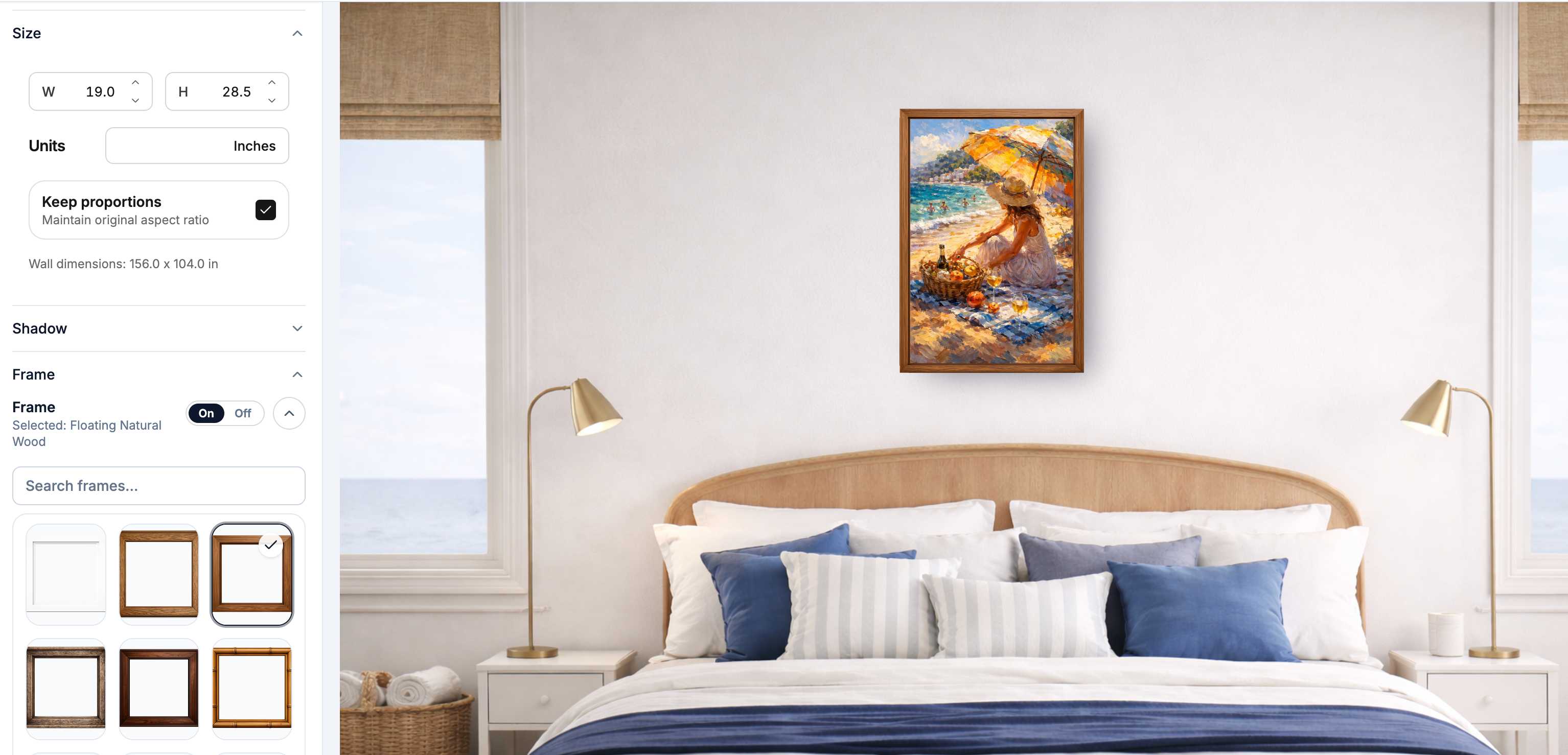
Matting adds visual breathing room and makes smaller prints feel more substantial. Adjust the shadow last — it should look like the frame is hung on the wall, not floating in front of it. A thick glowing shadow is one of the most recognizable signs of a template-made mockup, and buyers notice even if they can't name what's wrong.
More frame styling ideas on the frame mockup generator page.
Step 5: Position and level
Center the artwork over the furniture it relates to, not the entire wall. Keep it level. Leave believable space between the bottom of the frame and the top of a sofa or headboard. If you're generating mockups for a product collection, use consistent placement across every image so the set feels cohesive.
Step 6: Export
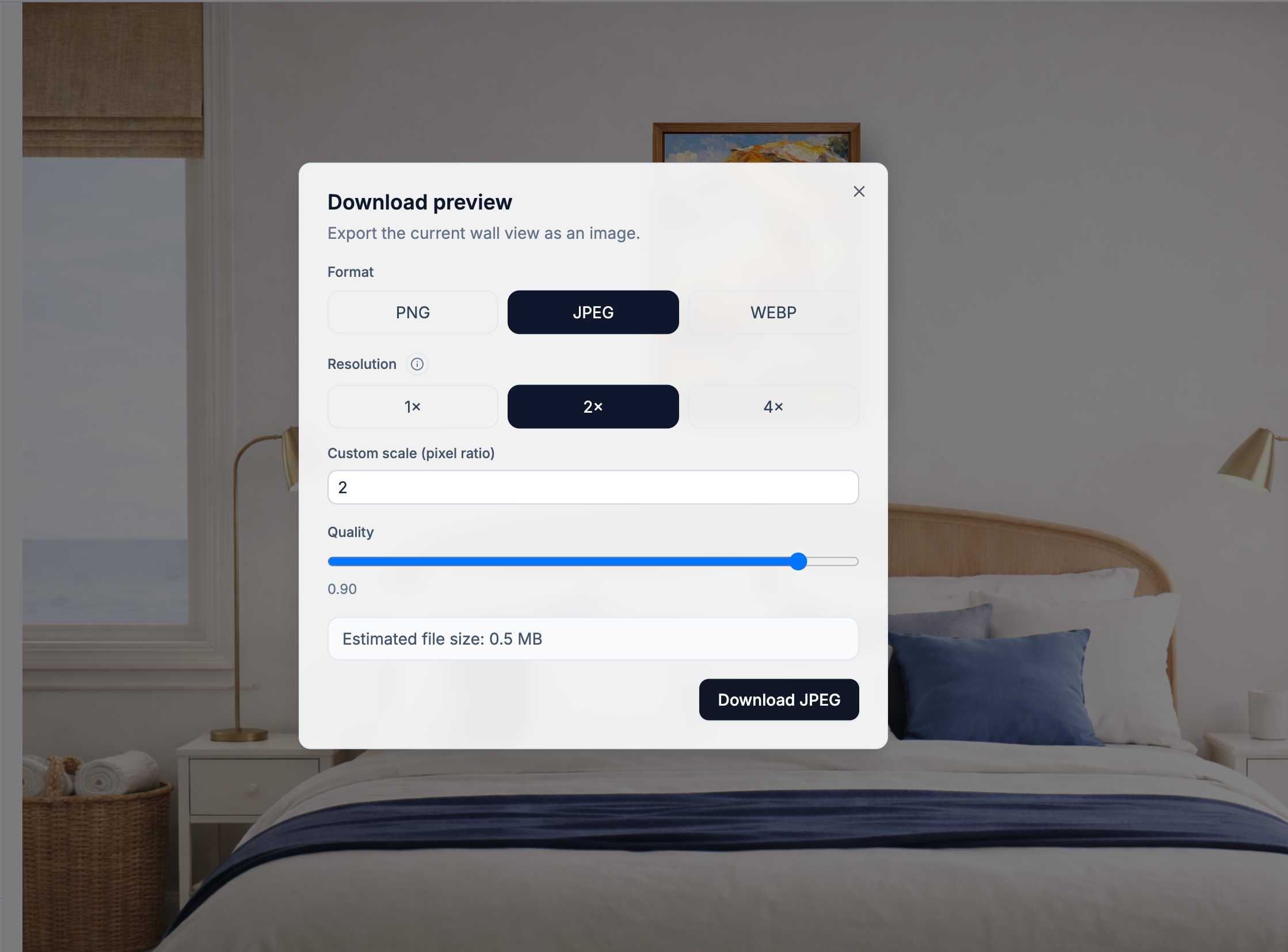
PNG gives the cleanest output. JPG works fine for marketplace listings where file size matters more than pixel-perfect quality. Export at the highest available resolution for any image buyers might zoom into — Etsy lets them.
A practical Etsy listing set: a hero room mockup, a close-up of the frame detail, a size-reference image showing the print next to furniture, and one alternate room or frame variation. Four purposeful images beat ten generic ones.
The Etsy wall art mockups guide has more on building a full listing image set.
Before you publish
Review the finished mockup like a buyer would:
- Does the artwork scale match the size listed in your shop?
- Is the frame consistent with what the buyer receives?
- Does the room scene fit the mood of the artwork?
- Are the shadows subtle and natural-looking?
- Does the first image read clearly as a small thumbnail?
- Is the style consistent across your product collection?
Common mistakes
Wrong scale. Every print shown at the same large scale regardless of listed dimensions is the most common trust-damaging mistake. Buyers notice when a claimed 8x10 fills a wall like a 24x36.
Mismatched frame. Showing a heavy black frame when you only sell unframed prints confuses buyers and invites refund requests.
Busy room scenes. A background with too much furniture and decoration competes with the artwork. The room should support the art, not distract from it.
Low-resolution exports. Etsy allows buyers to zoom in on listing images. Export at the highest resolution available.
WallMockup includes a free 7-day trial — no Photoshop, no template setup. Start generating wall art mockups or review pricing if you're ready to commit.
FAQ
What is a wall art mockup generator?
A wall art mockup generator takes your artwork file and places it in a realistic wall or room scene, producing a finished preview image you can use for listings, portfolios, and marketing. WallMockup is built for exactly this — upload your art, configure the room and frame, and export a listing-ready image without opening Photoshop. See the art mockup generator page to get started.
Do I need Photoshop to create professional wall art mockups?
No. WallMockup is browser-based. Upload, configure, and export without touching a PSD template.
What size should I set for my mockup?
Use the real product dimensions. If you're listing an 8x10 print, set 8x10 in the editor. The goal is to show buyers exactly how large the print will feel in a real room.
How many mockups should I use for an Etsy listing?
Three to five strong images is usually more effective than ten generic ones. Cover the hero room view, a detail shot, and a size reference at minimum.