Wall mockup editor
Wall mockup editor for artists and print sellers
Place your artwork in a realistic room at true scale, dial in the frame and shadow, and export a listing-ready image — all in the browser, no Photoshop needed.

How it works
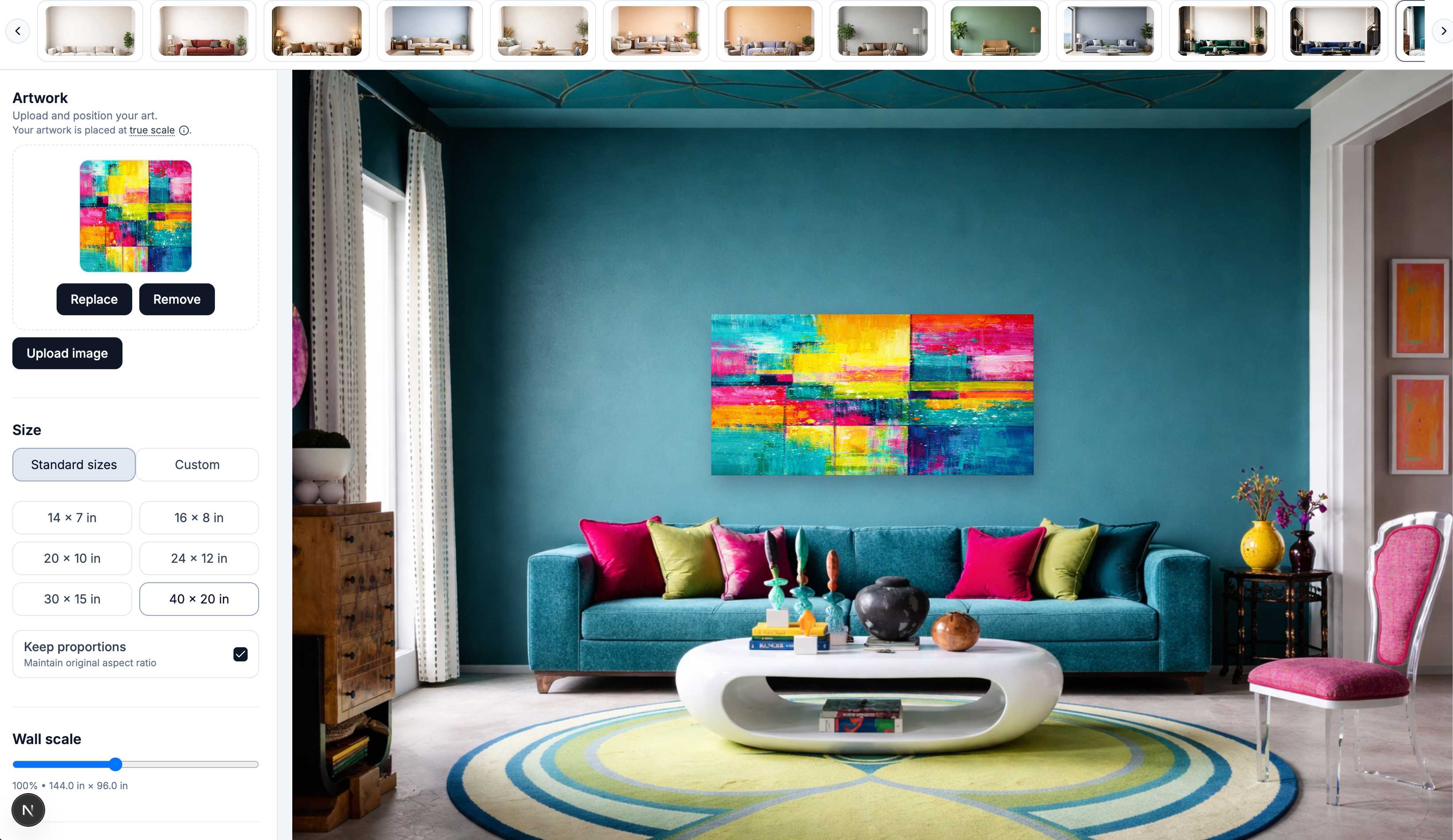
1. Upload your artwork
JPG, PNG, or WEBP. The editor places it on the wall scene immediately.
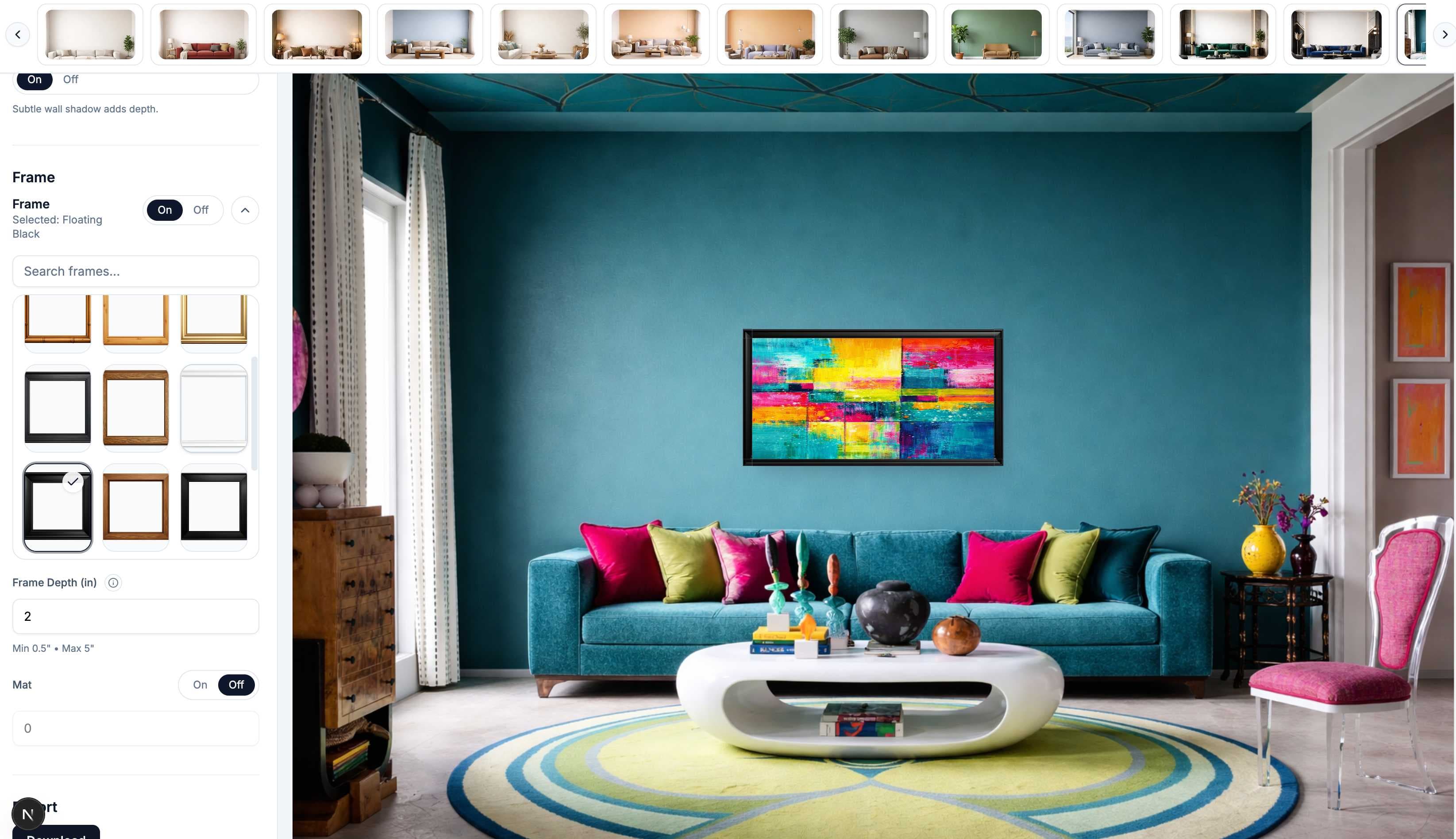
2. Set size, frame, and room
Enter the real print dimensions, pick a frame, and switch rooms without losing your settings.
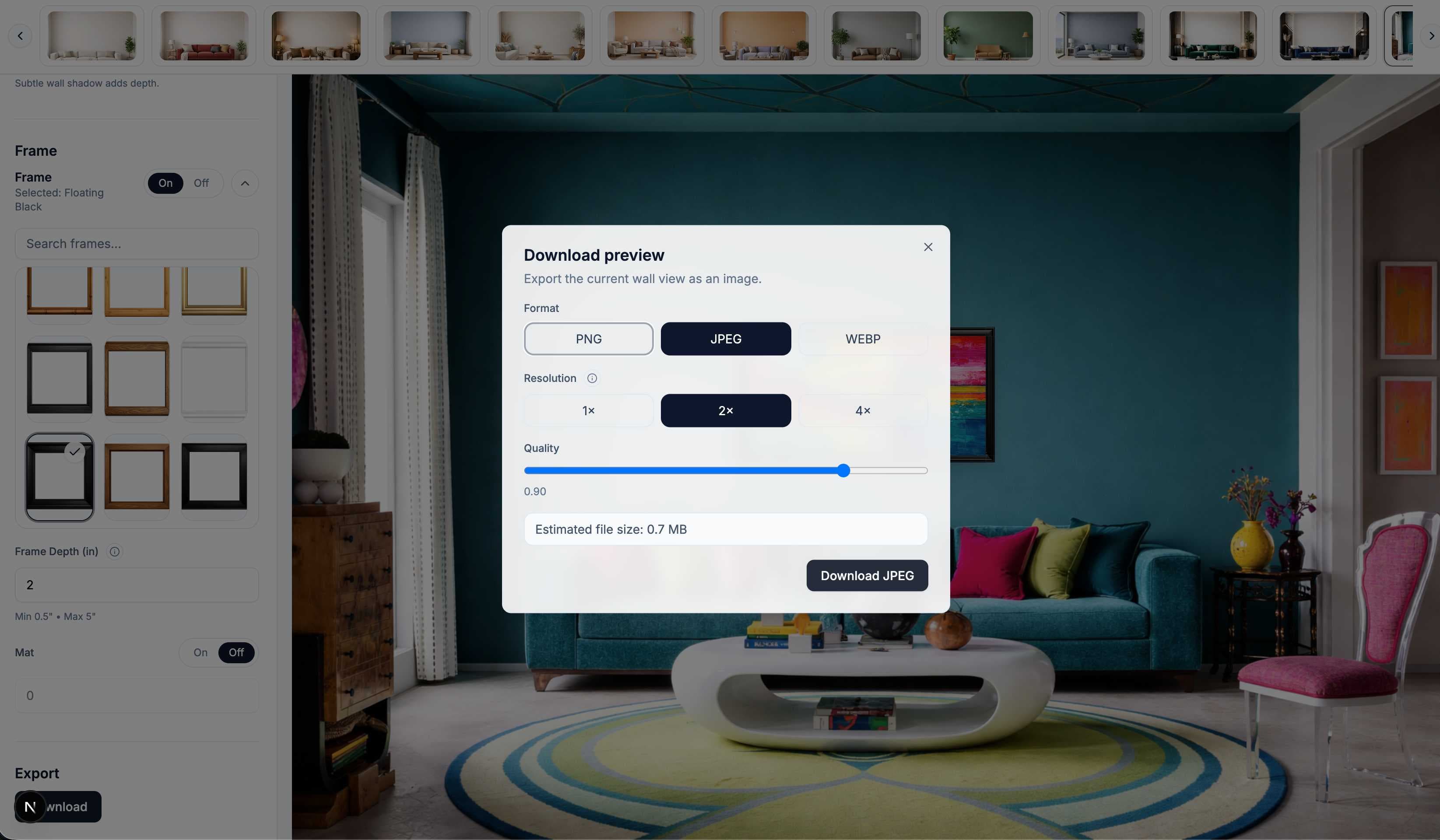
3. Export
Download PNG, JPG, or WEBP at the resolution your marketplace needs.
What the editor controls
Size presets and custom dimensions
Use standard sizes (8×10, 11×14, 16×20, 18×24, 24×36) or enter any custom width and height. The artwork scales accurately against real furniture in the scene.
Frame, mat, and shadow
Choose from black, white, wood, and gold frames. Add an optional mat. Adjust shadow depth so the frame looks hung on the wall rather than composited.
Room strip for quick swaps
Switch between room scenes with one click without resetting your artwork size or frame style. Useful for generating multiple listing images from the same artwork.
Why not Photoshop?
Photoshop PSD templates give you control, but every new listing becomes a manual task — open the file, find the smart object, place the artwork, adjust the shadow, export at the right resolution. That process is fine for one hero image, but it slows down a shop producing new listings every week.
WallMockup keeps the same settings between sessions. Once your frame style and room scene are set, producing a new listing image takes minutes, not a design session.
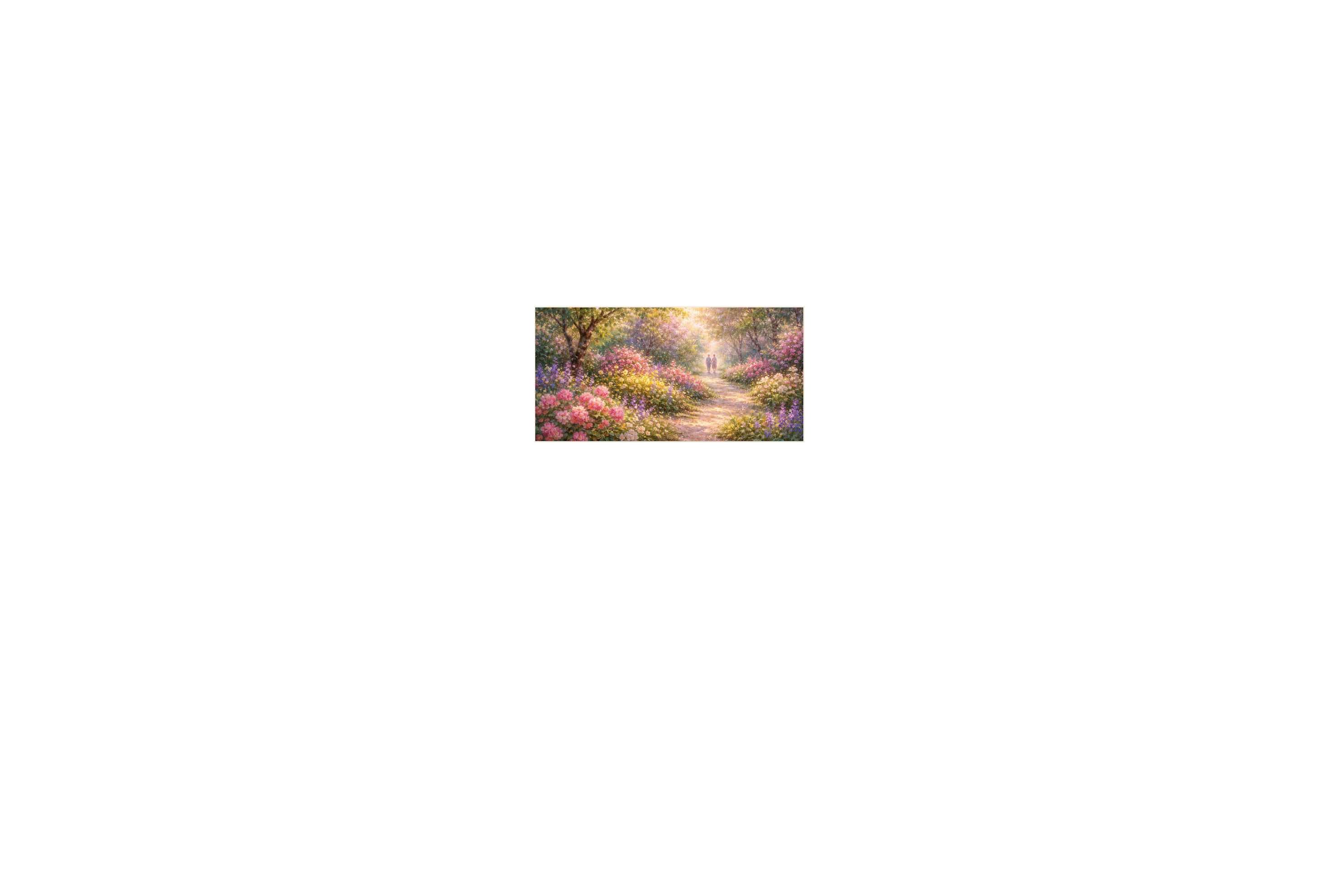
Flat file
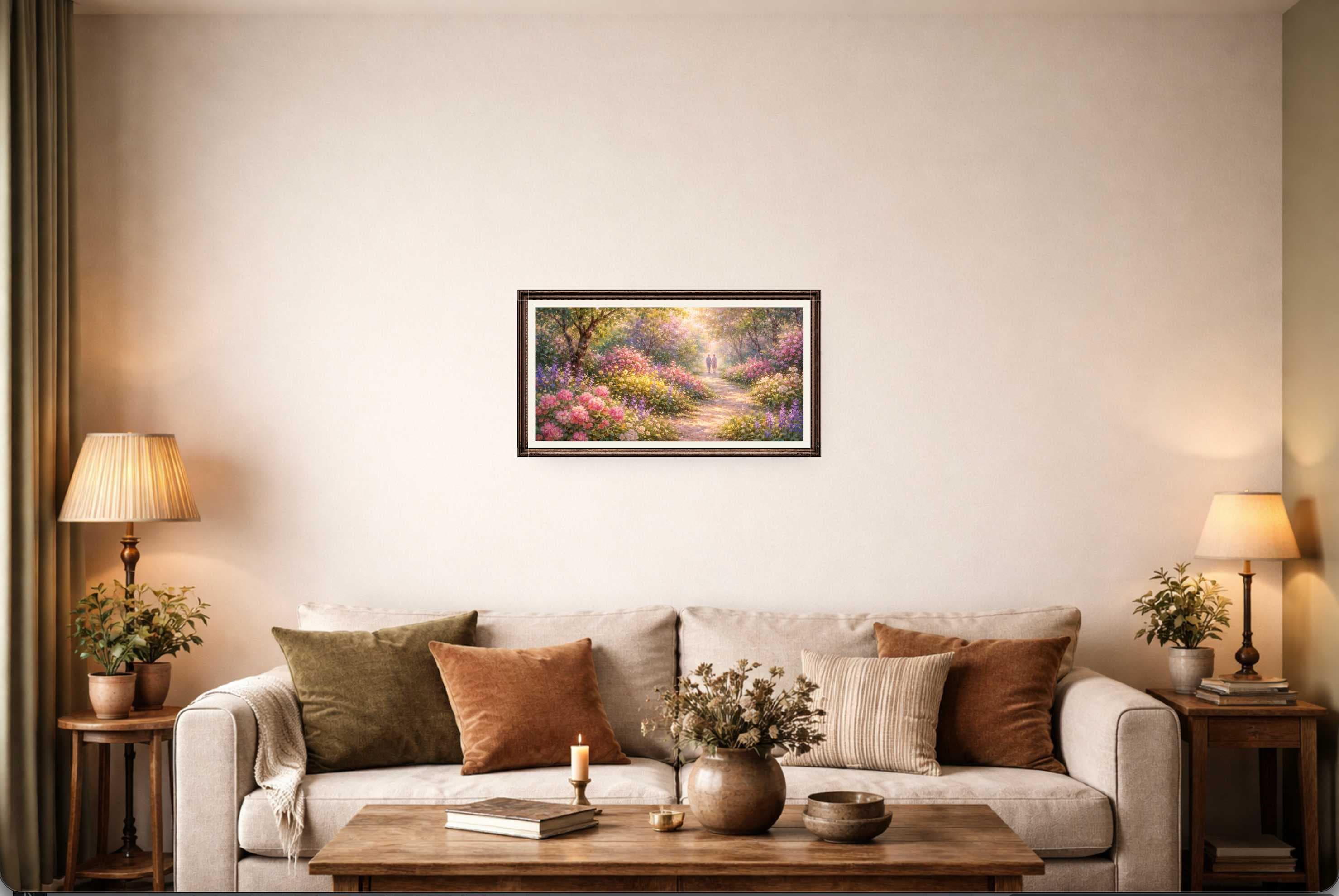
Wall mockup
Who it's built for
Print sellers generating Etsy and Shopify listing images on a weekly cadence — the editor saves your last session so returning to a consistent style is immediate. Switch rooms without resetting artwork size, and keep frame style identical across every new listing.
Artists testing new work — preview how a piece looks at different sizes and in different rooms before committing to a print run or product listing. Seeing a 16×20 versus a 24×36 against real furniture is more useful than guessing from a flat file.
Photographers and illustrators building a product catalog — test large format sizes, compare frame colors against the artwork's palette, and export a hero image for each new release without a separate design session.
Designers and art directors presenting wall art concepts to clients — export clean previews quickly without building a Photoshop scene from scratch. Clients approve faster when they can see the piece at actual scale in a recognizable interior.
See also: wall art mockups guide and art mockup generator.
When to use the wall mockup editor
Wall mockups are most useful when you need a realistic preview without staging a physical photo shoot. New product releases, seasonal frame updates, and A/B testing different room scenes are all faster when the workflow is digital.
For client work, mockups replace lengthy back-and-forth on how a piece will look in a specific space. Showing a scaled preview in a realistic interior speeds up approvals and reduces revision cycles.
If you are testing a new product size before committing to a print run, the editor lets you see how a 24×36 or 30×40 feels against real furniture before any printing costs are incurred.
Common questions
What is a wall mockup editor?+
A wall mockup editor lets you upload artwork, place it in a realistic room scene at accurate scale, adjust the frame and shadow, and export a preview image for listings or client presentations.
Does WallMockup support custom sizes?+
Yes. You can use standard size presets (8×10, 16×20, 24×36, and others) or enter custom dimensions for your artwork.
Can I keep the same artwork size when switching rooms?+
Yes. The room strip lets you swap scenes without resetting your artwork dimensions, frame settings, or placement.
Do I need to install anything?+
No. WallMockup runs entirely in the browser. There is nothing to install or download.
Try the wall mockup editor free
7-day free trial. No Photoshop. No file setup.
Open the editor