Published: October 19, 2026 · 13 min read
There are three ways to make a poster mockup in Canva: drop your design into one of Canva's ready-made mockups, put a Frame over a photo of a real room, or buy a Canva mockup template from another seller. For wall art you plan to sell, the second method is the one worth learning, because it is the only one where you decide how big the poster looks on the wall.
The catch is scale. Canva has no idea that your print is 18 x 24 inches, so it will happily let you hang a postcard-sized poster over a sofa or a poster the size of a door. The fix is a little pixel math, worked through with real numbers in method 2.
The short answer
- Fastest: Elements, search the Mockups category, drag your design in, download. Good for a quick social post. Little control over the room or the size.
- Most control: set a 3000 x 2000 px design, fill it with a front-facing room photo, add a rectangle Frame on the wall, size it in pixels from a measured object, drop the art in, download as JPG.
- Least effort per listing: a Canva mockup template from Etsy. Someone else built the room and the frame; you swap the art. The size is whatever the template maker decided.
If you only need a few images, Canva is fine. If you list prints every week in several sizes, the manual sizing in method 2 is the part that eats your time, and that is where a wall art tool earns its place (more on that at the end).
Which method should you use?
| Mockups app | Frame on a room photo | Template from Etsy | |
|---|---|---|---|
| What you start from | Canva's mockup library | Your own room photo or a free Canva photo | A Canva link from the seller |
| Who controls poster size | The mockup | You, with pixel math | The template maker |
| Works on Canva Free | Yes, premium items excepted | Yes | Usually, check the listing |
| Custom room from your own photo | Paid plans only ("Create a mockup template") | Yes | No |
| Best for | Social posts, quick previews | Etsy and Shopify listing photos | Sellers who want a styled room fast |
| Weak spot | You don't choose the room or the frame proportions | Scale and perspective are on you | Same room as every other buyer of that template |
Method 1: Canva's built-in Mockups
Canva's help center describes two ways in. From the editor, open Elements, click the search bar and pick the Mockups category, then drag an image from Photos or Uploads onto the mockup you chose. From an image already in your design, select it, choose Edit, and under Apps pick Mockups, then Apply changes when it looks right (Canva Help: Create mockups).
A few things to know before you rely on it for listings:
- Pick a mockup with the same shape as your print. A 2:3 poster dropped into a 4:5 frame gets cropped. Before you apply changes, click the mockup and use the reposition and crop options Canva shows, and check that nothing important at the edges has gone.
- Look at the room, not only the frame. Many Canva mockups are product shots: a poster leaning on a shelf, a print held in hands, a frame on a plain backdrop. These are nice as a second or third listing photo, but a buyer cannot judge size from them.
- Custom mockups need a paid plan. Canva can turn your own photo into a mockup template (it detects the surface you want to place art on), but that feature is listed for Pro, Teams, Enterprise, Education and Nonprofit subscriptions only. Canva also notes that premium library photos don't work for it, so you need your own photo or a free one (Canva Help).
Smartmockups, which Canva owns, closed its own site on September 27, 2024, and Canva now points those users to the mockups inside the editor. Mockups you exported from Smartmockups before that stay royalty-free.
Method 2: A Frame on a room photo (the one to learn)
This is the classic do-it-yourself Canva mockup. You are building a simple mockup by hand: one photo of a wall, one frame shape, your art inside it.
Step 1: Start with the right canvas size
Click Create a design, then Custom size, and enter 3000 x 2000 px. That is a 3:2 landscape image, which is what we recommend for the first Etsy photo: it meets Etsy's 2000 px recommendation and still survives Etsy's square and portrait thumbnail crops. Our Etsy listing photo size checker explains the crops if you want the details.
Portrait posters look fine inside a landscape room photo. You see wall on either side, which is what makes the size readable.
Step 2: Add a room photo that faces the wall
Upload your own photo, or search Photos for something like "empty wall living room". Drag it onto the page and stretch it so it covers the whole 3000 px width. Keeping the photo exactly as wide as the page matters for step 4.
Choose a photo where the camera looks straight at the wall. Canva's frames are flat rectangles. If the wall runs away from the camera at an angle, a flat frame on it will look pasted on, because a Frame stays a straight-on rectangle however you resize it. Canva says the same thing about its own custom mockups: flat, simple surfaces and uncluttered backgrounds work best.
Step 3: Add a frame
Open Elements, go to Frames under Browse categories, and search for "rectangle" (Canva Help: Use frames). Click a plain rectangle frame to add it, then drag your artwork from Uploads over the frame until it snaps in. Double-click the art inside the frame to move or resize it within the frame, and click Done.
Canva's frames are only the hole for your image. For a visible picture frame, put a slightly larger rectangle shape behind the Frame and color it black, white oak or walnut. For a mat, add a white rectangle between the two.
Step 4: Size the poster from something you can measure
Most Canva tutorials stop at "drag your art in". This step is what decides whether the poster looks like the size you sell.
You need one object in the photo whose real width you know. If you took the photo yourself, measure the sofa, the bed or the dresser with a tape. Then:
- Draw a thin rectangle over that object, edge to edge, and read its width in pixels. Canva lets you type an exact width and height for a selected element, which is also how you'll set the poster size.
- Divide pixels by inches. That is how many pixels one inch of wall takes up in this photo.
- Multiply your print size by that number. Add the frame and mat to the print size first if the poster will be framed.
Worked example. The room photo fills a 3000 px wide page. The sofa measures 84 inches and the rectangle over it is 1680 px wide.
- 1680 px / 84 in = 20 px per inch
- An 18 x 24 in poster = 18 x 20 by 24 x 20 = 360 x 480 px
- With a 1 inch frame on every side, the outer size is 20 x 26 in = 400 x 520 px
Set the frame rectangle to 400 x 520 px, the Frame with the art to 360 x 480 px, and center them. That poster now sits on the wall at the size the buyer will actually receive.
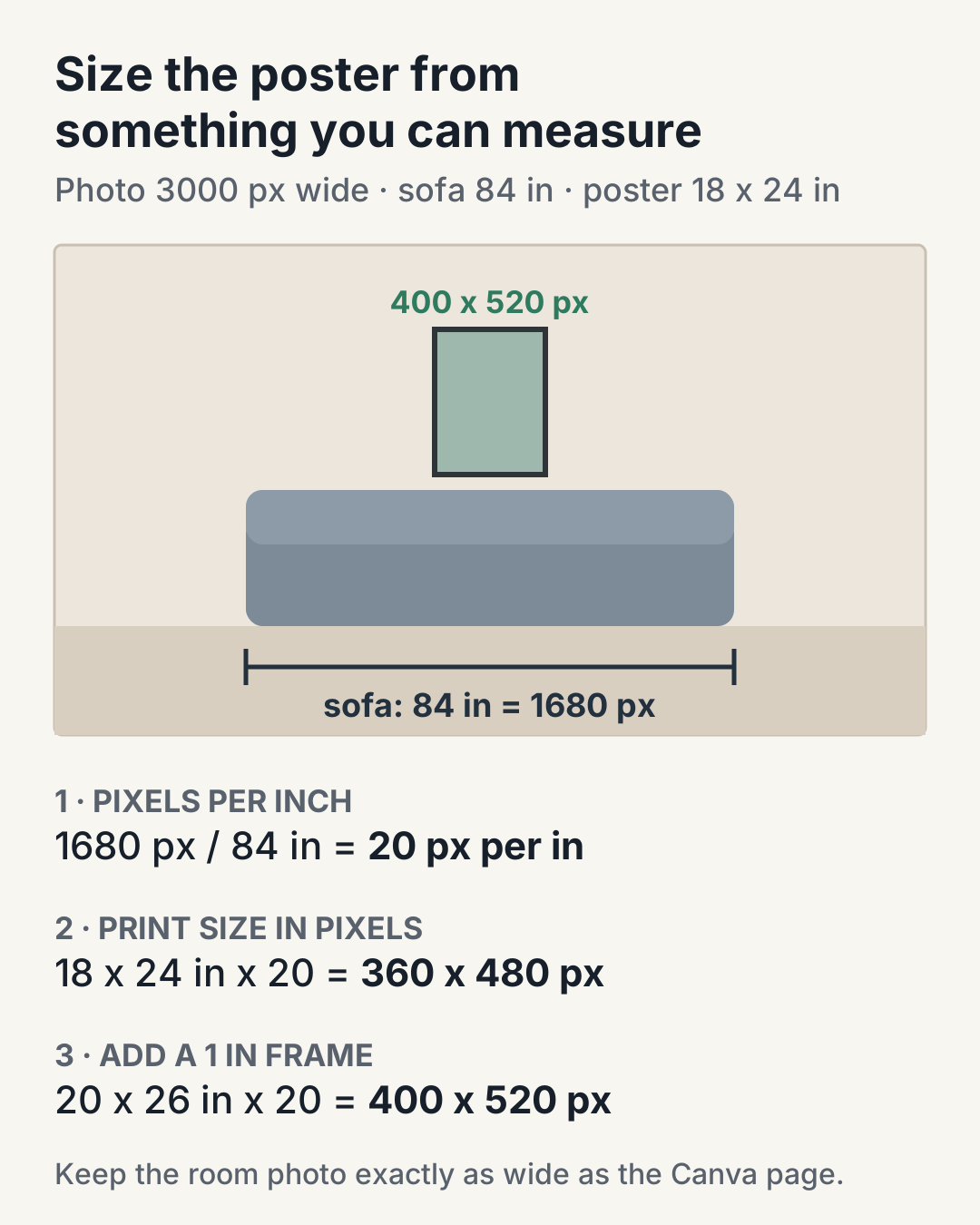
Two rules keep the math right. Measure in the same layer you place the poster on, so if you later shrink the room photo, shrink the poster by the same amount. And measure an object that sits roughly against the wall. A sofa pulled into the room is closer to the camera, so it looks bigger than the wall behind it and your poster ends up a little small. For most listing photos that error is minor; for a 60 inch statement piece it shows.
If you're using a stock photo, you don't know the sofa's real width, so the math becomes an educated guess. That is the real limit of size-accurate mockups in Canva. If you sell several sizes of the same print, the wall art size calculator helps you decide which sizes suit a sofa or bed wall before you build each mockup.
Step 5: Add a shadow so it doesn't float
A frame with no shadow looks like a sticker. Canva's documented shadow tool works on photos: select the image, choose Edit, then Shadows, pick a style and adjust blur, direction and intensity (Canva Help: Add shadows to photos). Canva's help doesn't describe that panel for plain shapes. If your frame is drawn with rectangles and your editor shows no shadow option for them, select the frame, mat and art together, download just that selection as a PNG (Canva Help: Download a selection), upload it back and place it on the wall. It is now a photo, so the Shadows panel works on it. Because the group is a plain rectangle, you don't need a transparent background for this.
Keep the shadow faint and short. The light in the room photo decides the direction: look at which way the sofa's or the lamp's shadow falls and match that side.
Step 6: Download for Etsy
Go to Share, then Download, choose a file type and adjust the size and quality (Canva Help: Download designs). For a listing photo, JPG at 3000 x 2000 px is the practical choice: a photo with a room in it is much heavier as PNG, and Etsy recommends keeping listing images under 1 MB.
If the design uses premium photos or elements and you're on Canva Free, Canva will ask you to buy a license, upgrade, or download a watermarked draft. A watermarked mockup can't go on a listing, so check the crown icons before you build around a premium room photo.
Method 3: Canva mockup templates from Etsy
Search "Canva wall art mockup" on Google and most of the first page is Etsy listings selling Canva templates. When we checked on October 19, 2026, the listings in those results were priced around $5 to $6. You buy a PDF, it contains a link, and the link opens a copy of the template in your own Canva account with the room, frame and shadow already built. You replace the placeholder image with your art and download.
What to check before you buy:
- Frame ratio. A template built for 8 x 10 (4:5) frames will crop a 2:3 or ISO A-size print. Look for the ratios in the description and match them to the sizes you sell.
- Commercial license. You need the right to use the result in a product listing. Most sellers say so in the description; if it isn't there, ask before you buy.
- Premium elements. If the template uses Canva Pro photos or elements, a Free account will hit the license or watermark prompt at download.
- Scale. The template maker decided how big the frame looks. If the listing doesn't state the frame size in inches, assume it isn't sized for your print and check it with the math in method 2.
- Uniqueness. Popular templates show up in many shops. Your art changes, but the room is the same one buyers have scrolled past already.
Five mistakes that make Canva mockups look fake
- The wrong scale. A poster that is too big for the sofa tells the buyer the print is bigger than it is, and that gap is how a listing collects "smaller than expected" reviews. Do the step 4 math once per room and save the result.
- A frame on an angled wall. Flat frames only belong on walls that face the camera.
- Cropped artwork. The frame ratio doesn't match the print, and part of the design disappears. Check the corners of every export.
- No shadow, or a hard black one. Use a soft, low-opacity shadow that falls the same way as the room's light.
- Too much room. On a phone, the thumbnail is small. If the plant and the lamp are more eye-catching than the print, crop tighter or choose a calmer wall.
When Canva stops being the right tool
Canva is a good choice when you already make your listing graphics, size charts and social posts there, and you need a handful of mockups a month. It gets slow when every new print needs the same five rooms in four sizes, because each size means redoing the pixel math and resizing the frame and mat by hand in every room.
That is the job WallMockup is built for. You type the print size in inches or centimeters, pick a frame and mat, and the room already knows its wall width, so the poster lands at true scale without any calculation. You can put the same print into many rooms at once with the Bulk Generator and export at the size Etsy recommends. If you're comparing tools first, our guide to the best art mockup tools covers Canva, Placeit, ArtPlacer, Photoshop and others side by side, and How to Create Wall Art Mockups Without Photoshop covers room choice, frames and export in more depth.
Key Takeaways
- Canva gives you three routes: the Mockups app, a Frame on a room photo, or a template bought on Etsy.
- For listing photos, build a 3000 x 2000 px design with a front-facing room photo and a rectangle Frame.
- Size the poster from a measured object: pixels divided by inches gives pixels per inch, then multiply by the print size including frame and mat.
- Custom mockups from your own photos need a paid Canva plan, and premium elements trigger a license or watermark prompt on Canva Free.
- If you redo the same rooms for every size, a true-scale tool saves the manual math.
FAQ
Can you make a poster mockup in Canva for free?
Yes. The Mockups category in Elements and the Frames method both work on Canva Free. The limits are premium mockups and photos, which need a license or a paid plan, and custom mockup templates made from your own photo, which Canva lists for paid plans only.
How do I put my art in a frame in Canva?
Add a frame from Elements, under Frames, then drag your artwork from Uploads onto it until it snaps in. Double-click the art to reposition it inside the frame. For a visible picture frame and mat, place a colored rectangle and a white rectangle behind the Frame.
How do I make a Canva mockup the right size?
Measure one object in the room photo, such as a sofa, in inches, and draw a rectangle over it to get its width in pixels. Divide pixels by inches to get pixels per inch, then multiply your print size by that number. An 18 x 24 inch print in a photo with 20 pixels per inch is 360 x 480 pixels.
What size should a Canva mockup be for Etsy?
Use a 3000 x 2000 px design and download it as a JPG. It is a 3:2 landscape image that meets Etsy's 2000 px recommendation and keeps the print inside Etsy's square and portrait thumbnail crops.
Are Canva mockups OK for commercial use on Etsy?
Generally yes, when the content is used inside a Canva design under Canva's content license, and premium items are licensed through a paid plan or a purchase. Templates bought from other sellers come with that seller's license, so read it before you list.
Make your next mockup at true size
Try the frame method once with the worked example above and you'll see where the time goes. If you'd rather type 18 x 24 and pick a room, the art mockup generator does the sizing for you, and the poster mockup maker covers hangers, tape and other unframed looks.